Desktop App

Hexby: Codebase into a visual canvas

design
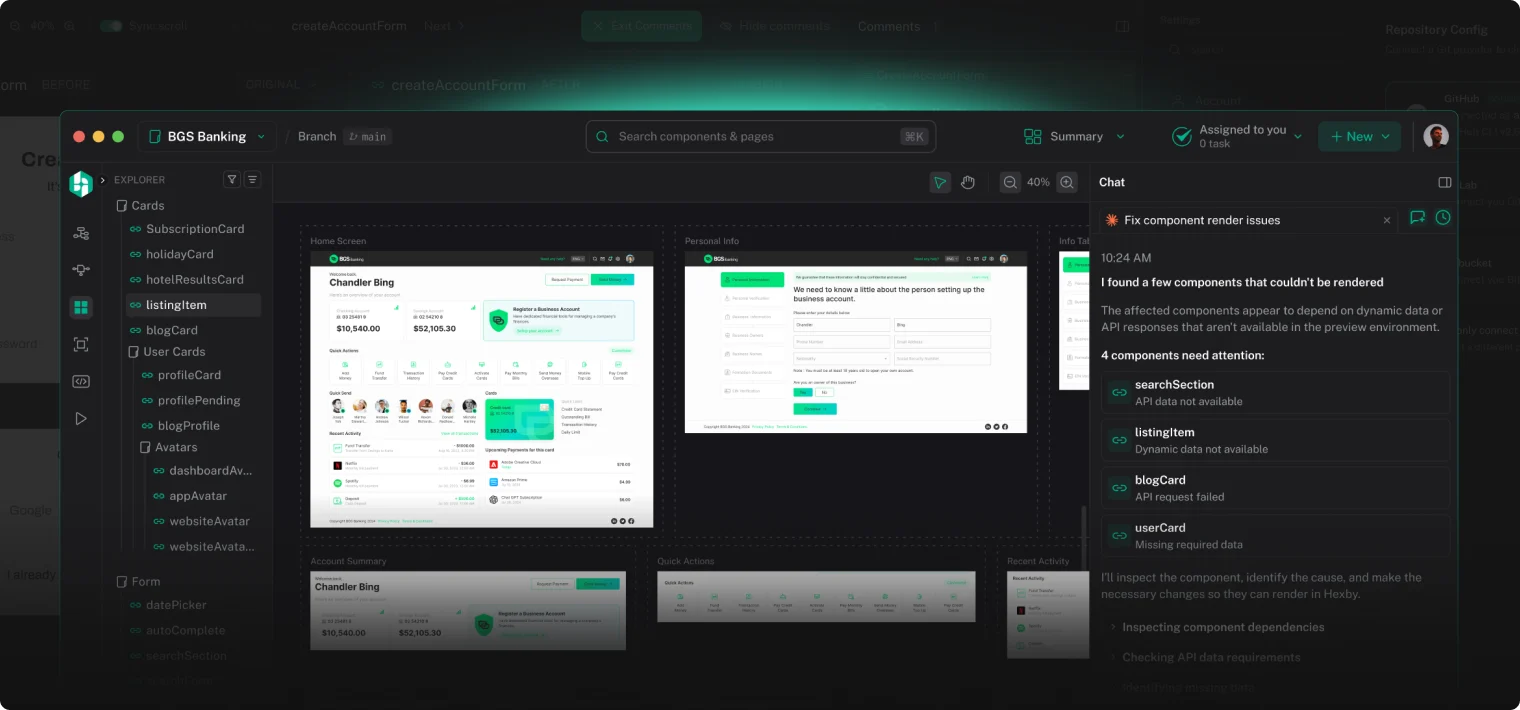
Hexby canvas showing rendered screens from a codebase with the component chat panel
My Role
Product Designer
Focus
Product Experience,
Visual Design
team
Design, Engineering,
Product
About the project
A visual workspace built on top of real code
Hexby turns a production codebase into a visual canvas, so designers and product teams can review, iterate on, and update the UI that actually ships — using the AI coding agents (Claude Code, Cursor, Codex and others) the engineering team already relies on.
01
The Challenge
Design lives in one place, production ships from another
Mockups drift from what's actually deployed the moment engineering starts building, and reviewing a change usually means reading a diff or asking someone to describe it. Non-technical teammates have no direct way to see, review, or nudge the interface that real users touch.
02
The Goal
Make the real UI reviewable and editable by the whole team
Give product teams a way to work directly against the code that ships, without asking anyone to learn a new agent, adopt a new design tool, or step outside the existing review and merge workflow.
The goal was to:
Turn the codebase into something visual, not another artifact
Let people use the AI agents they already trust
Keep every change reviewable before it merges
03
The Solution: from code, to canvas, to commit
Hexby reads a connected codebase and lays out every page, layout and component as a deterministic map — the same project always draws the same canvas, so the team can learn where things live. From there, a component can be isolated, edited visually, or handed to an AI agent with the exact selection as context. Nothing reaches the repository until someone reviews the before-and-after and means to merge it.
These are the views in the app, in the order they appear in it.
Component Map
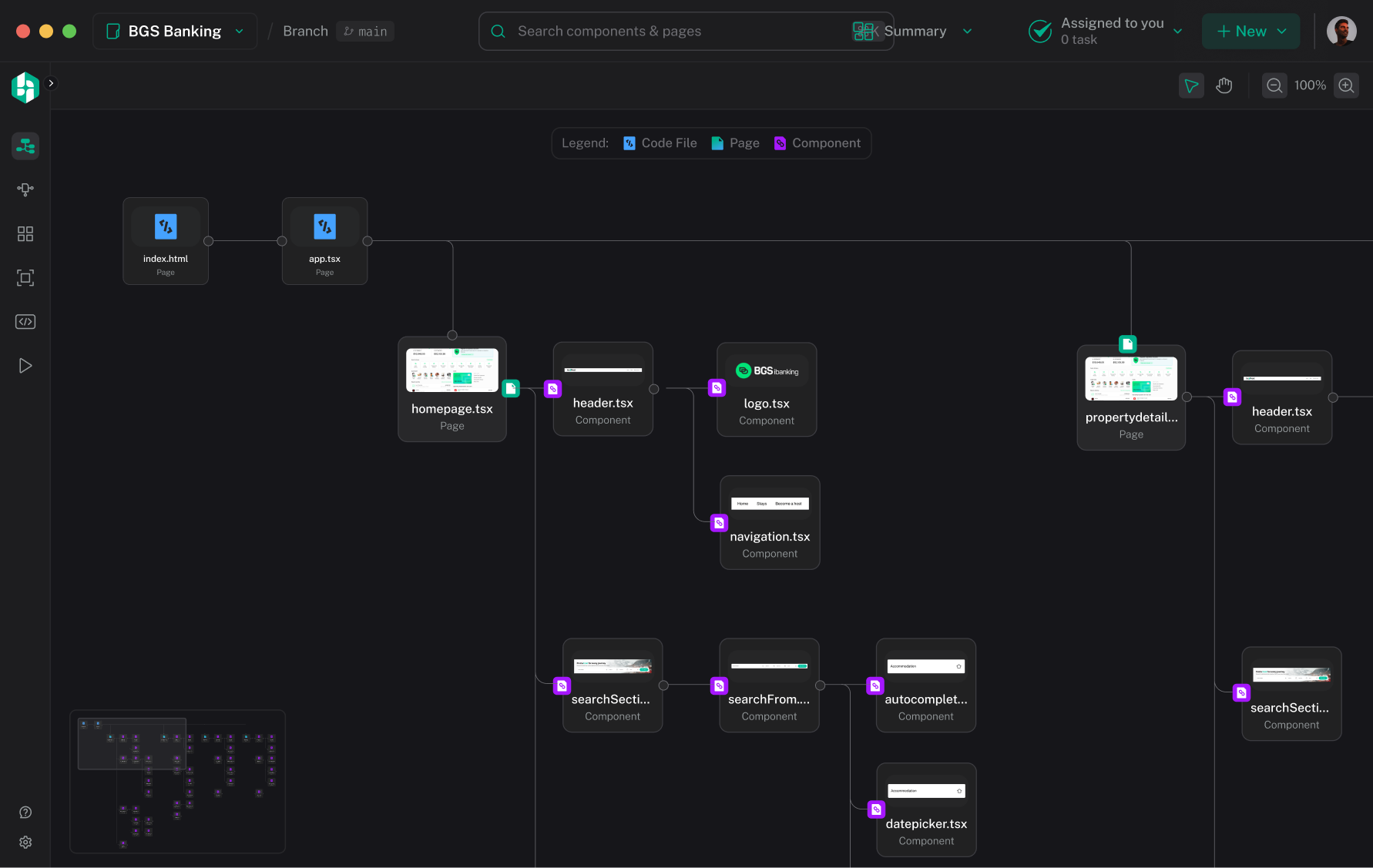
Every screen and component, on one canvas
Hexby reads the project and lays out every page, layout and component as a map, connected by what actually renders what. The layout is deterministic, so the same project always draws the same map and the team can learn where things live. Zoom out for the shape of the whole project; zoom in and every node shows the screen it renders, named, with the kind it is. Changed files pick up a git status border, so the map also pictures work in progress.
Hexby component map showing every page and component connected by what renders it
Pages
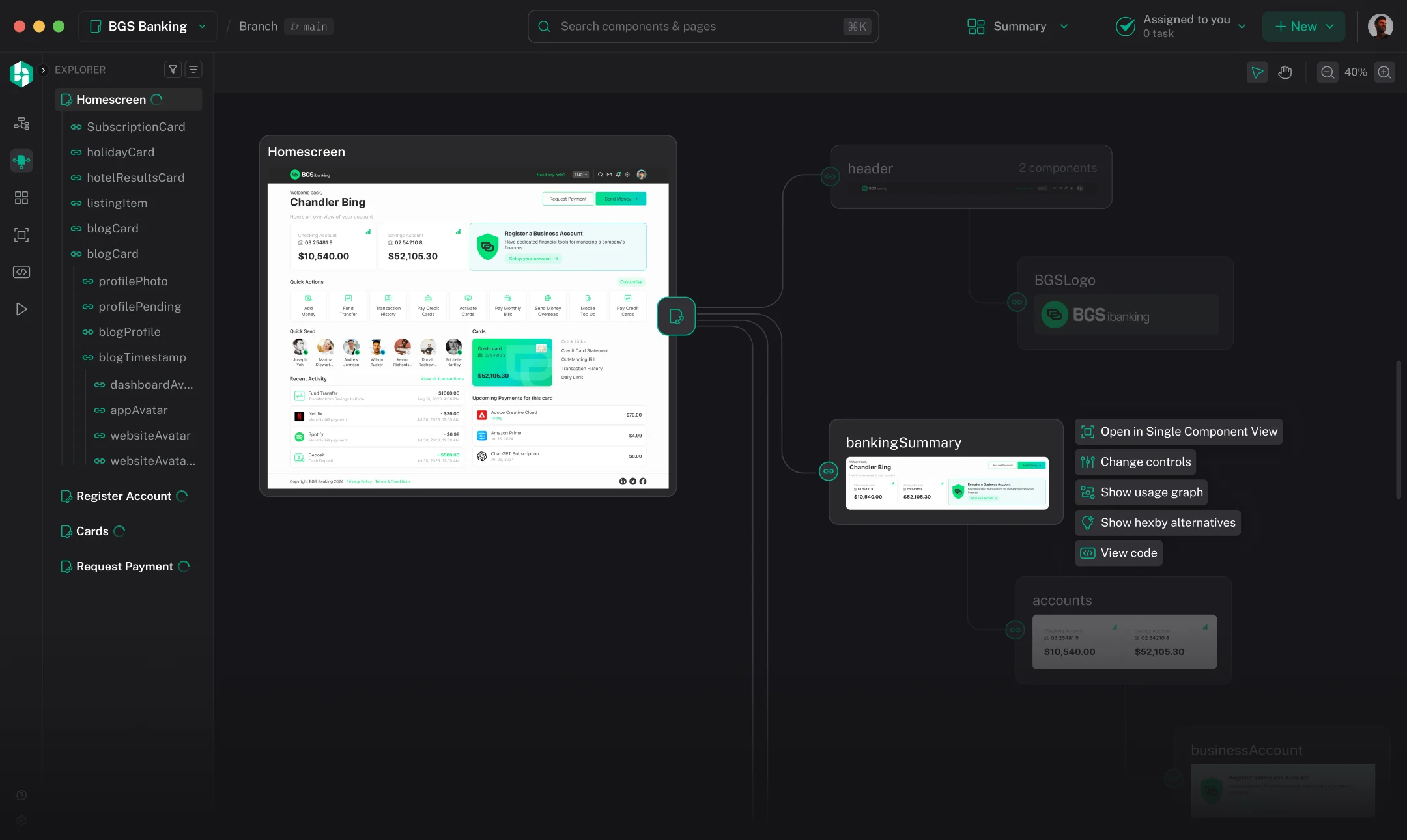
One page and all the dependencies
Pick a page and the canvas draws it together with its whole dependency closure. A shared component appears under every parent that uses it but resolves to one record, so before anyone changes anything they can see everywhere it would land.
Hexby Pages view showing a home screen and its connected dependencies on the canvas
Component Library
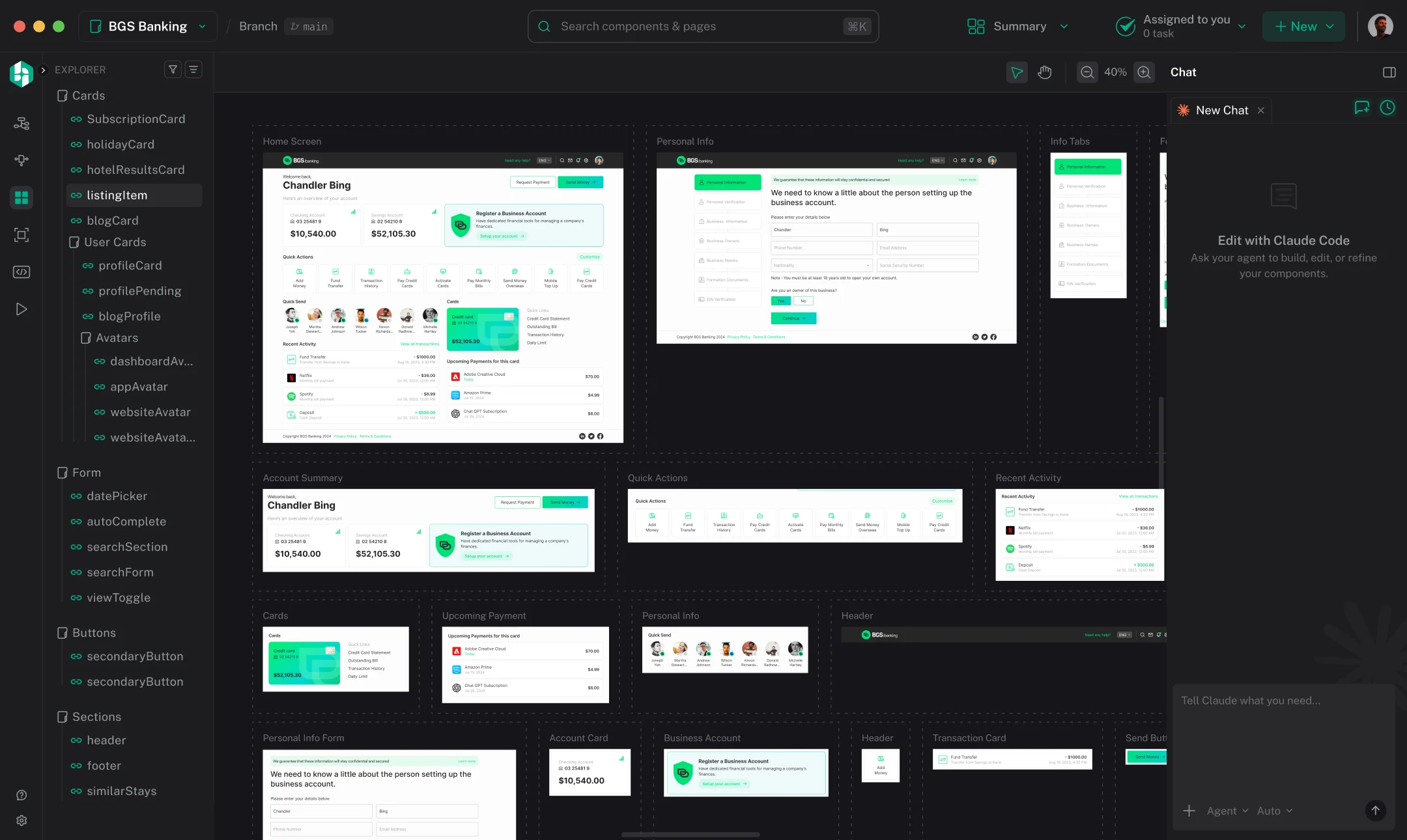
The whole component library, rendered
Every component in the project on one free canvas, with project-wide search, filtering by kind, and sorting. Zoom in and the cards become the real components — live and clickable — so the team can hover them and try their states without leaving the canvas.
Hexby canvas showing the project’s screens and components laid out as live cards
Single Component
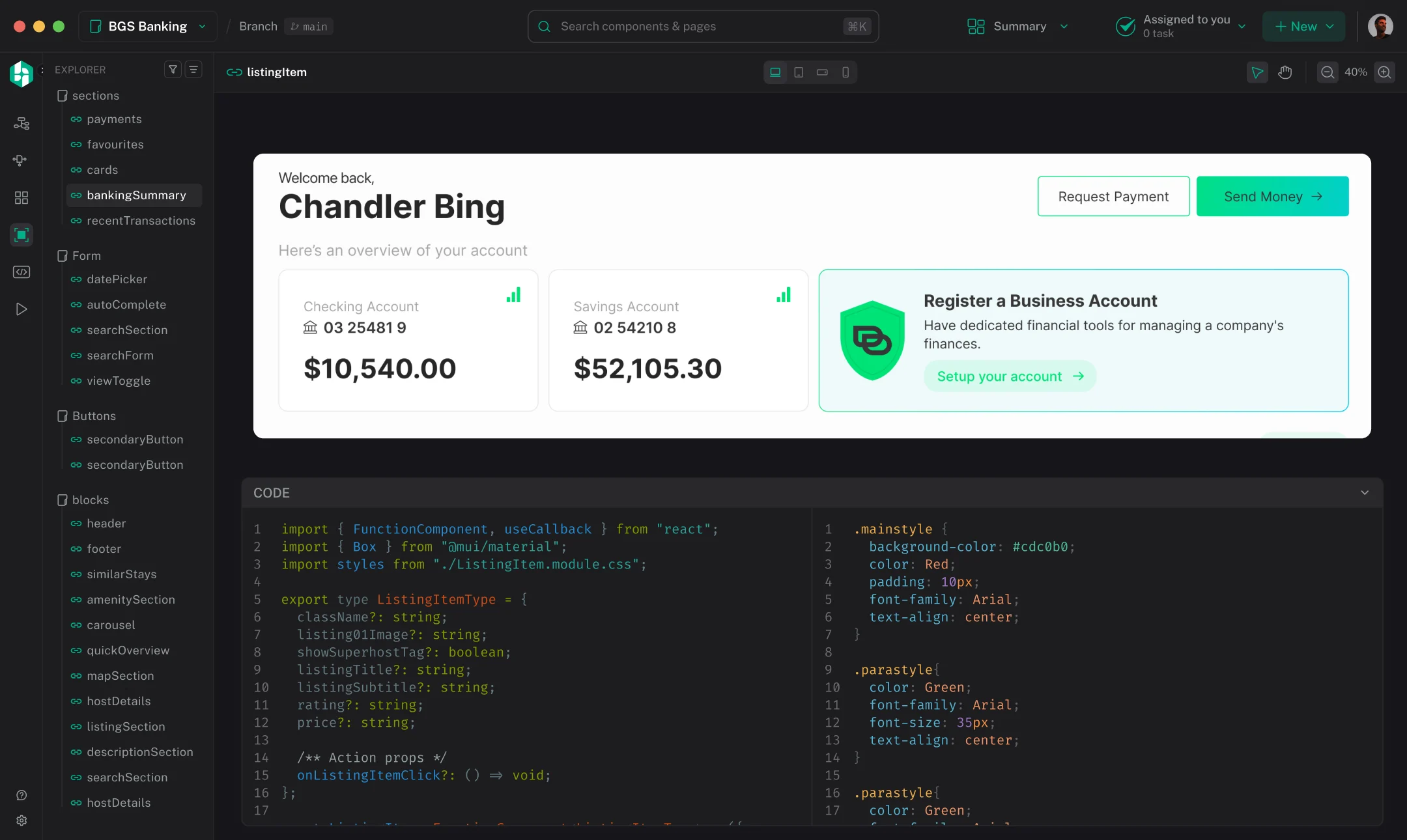
One component, with its code underneath
Isolates a single component in the middle of the canvas with Desktop, Tablet and Mobile breakpoints, and a resizable code dock below it showing that component’s source. When the component has a companion stylesheet, the dock splits so markup and styles sit side by side.
Hexby Single Component view with the component on the canvas and its source in the code dock
Code Editor
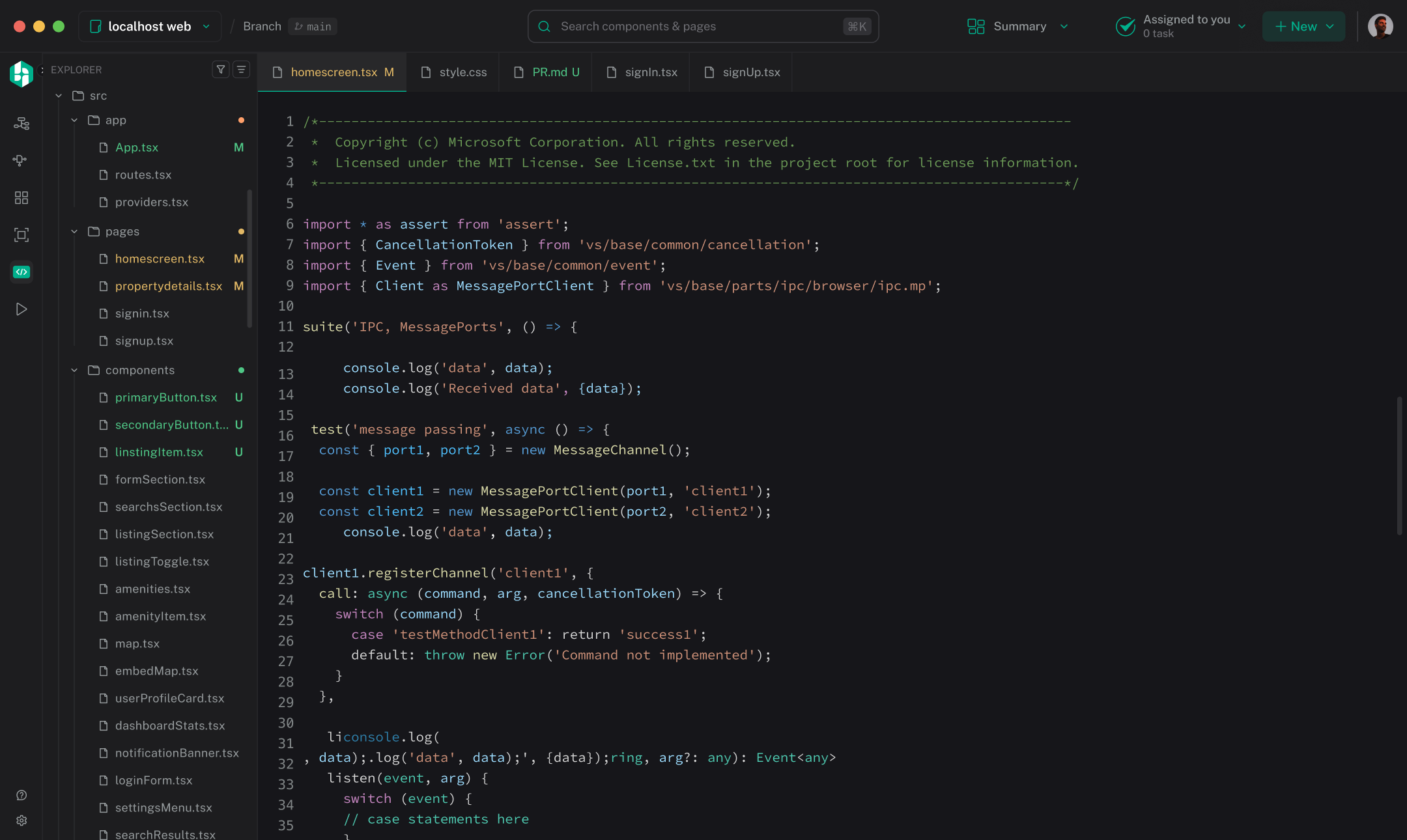
Your whole folder structure in the code editor
A file tree, a tabbed editor, git decorations, and project-wide search and replace — case, whole word, regular expressions, and include or exclude globs. It stays mounted while you move around the workspace, so tabs and scroll position are still there when you come back.
Hexby code editor showing the project file tree and a tabbed source file
Preview
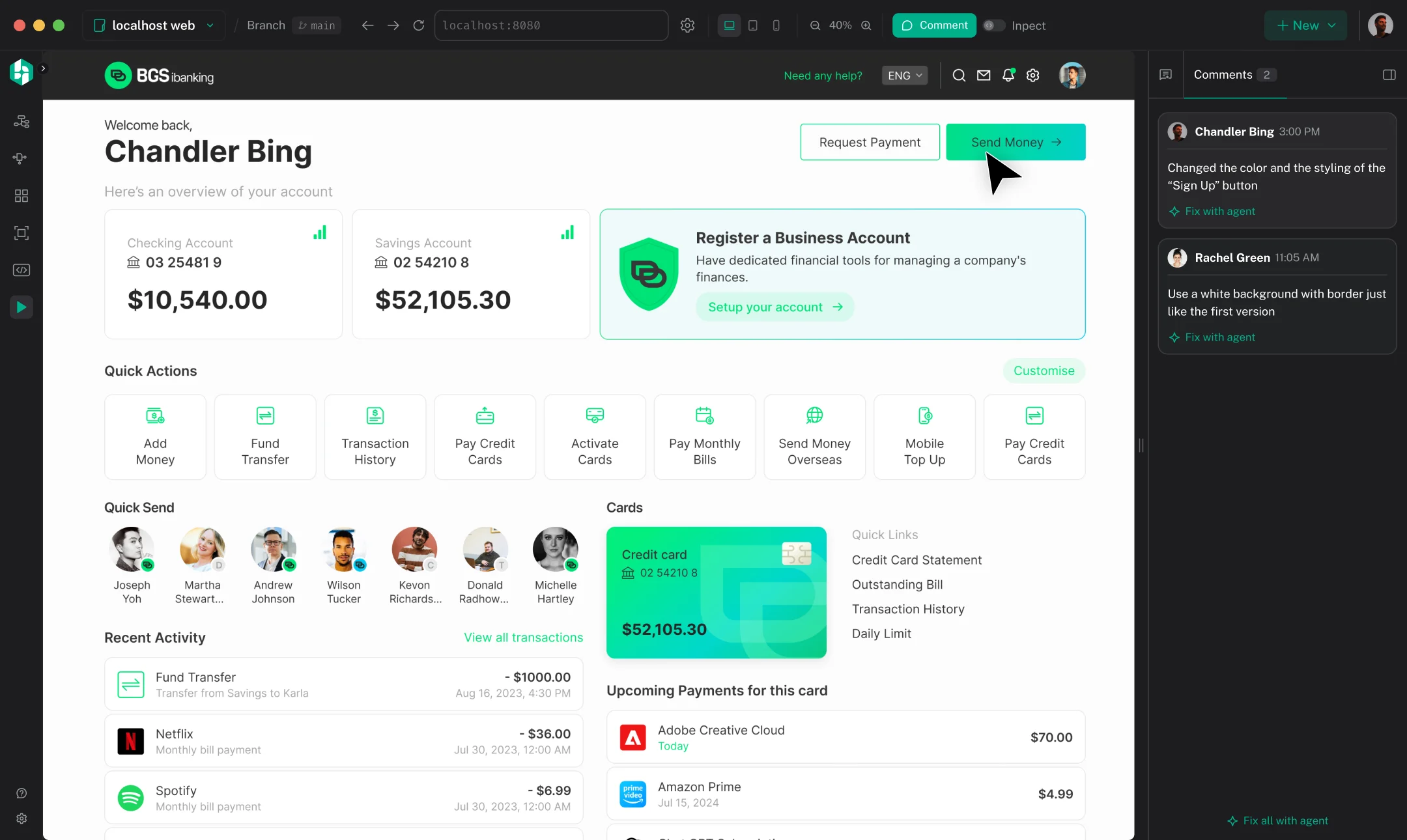
Your real app, running inside Hexby
Hexby starts the project’s own dev server and frames the running app, with an address bar that drives its real history, route autocomplete from the analysis, and Desktop, Tablet and Mobile viewports. The Inspect dock is where someone who does not write code gets to work: a live layers tree, controls for colour, typography, spacing and layout, and a Content tab for editing the words on the screen.
Hexby Preview showing the running app framed inside Hexby with comments in the side panel
Agent
Your agent, in the right panel
Ask the agent to build, edit, or refine components. Select something on the canvas and it comes along as context, so the agent knows exactly which file you mean. Paste an image, run a slash command, or dictate. Answers come back as plans, diffs and permission cards you approve — nothing is written to the project without a yes.
04
We build Hexby with Hexby
The website, the onboarding, and 30% of the product itself
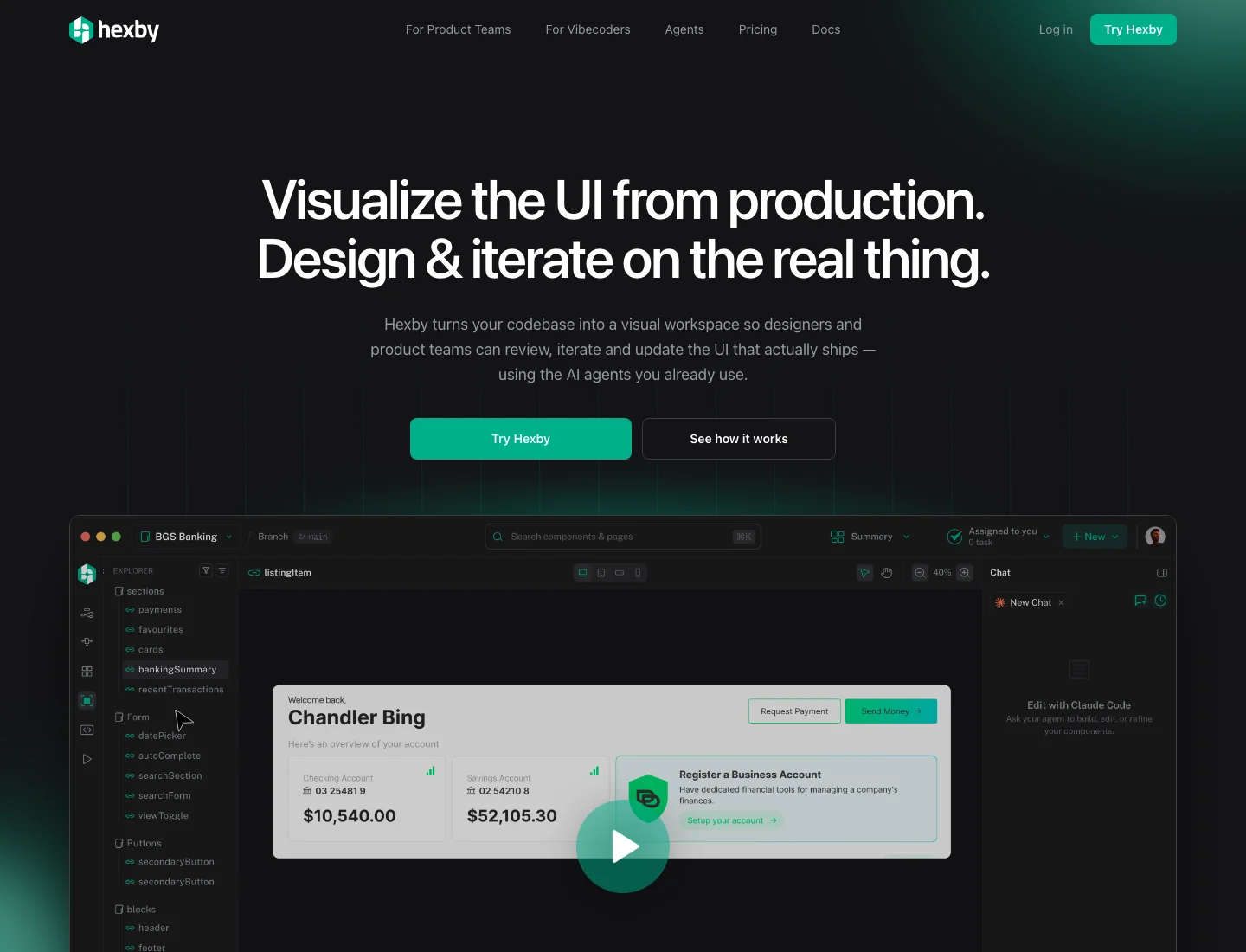
We use Hexby to build Hexby. The whole website, the onboarding experience, and about 30% of the flows inside the product were designed and shipped in Hexby — so the next release is also how we test the one we just shipped.
Why we use our own product:
We catch problems ourselves. If something is slow, confusing, or broken, we notice it while we work — not after a customer complains.
We build and test at the same time. When we change the site or the app, we preview it and leave comments in Hexby, just like anyone else would.
What bothers us gets fixed next. Using Hexby on our own work shows us what to improve before other people have to deal with it.
Hexby website homepage